replaceSim
Connect will open on the replace SIM page for a subscription. The user confirms the replacement and picks a SIM type where the plan offers a choice, Connect creates a subscription change with the corresponding parameters and waits for it to be applied, and on success hands the user off to the instructions for setting up their new SIM. If the user aborts, they will be redirected back to callbackUrl if provided.
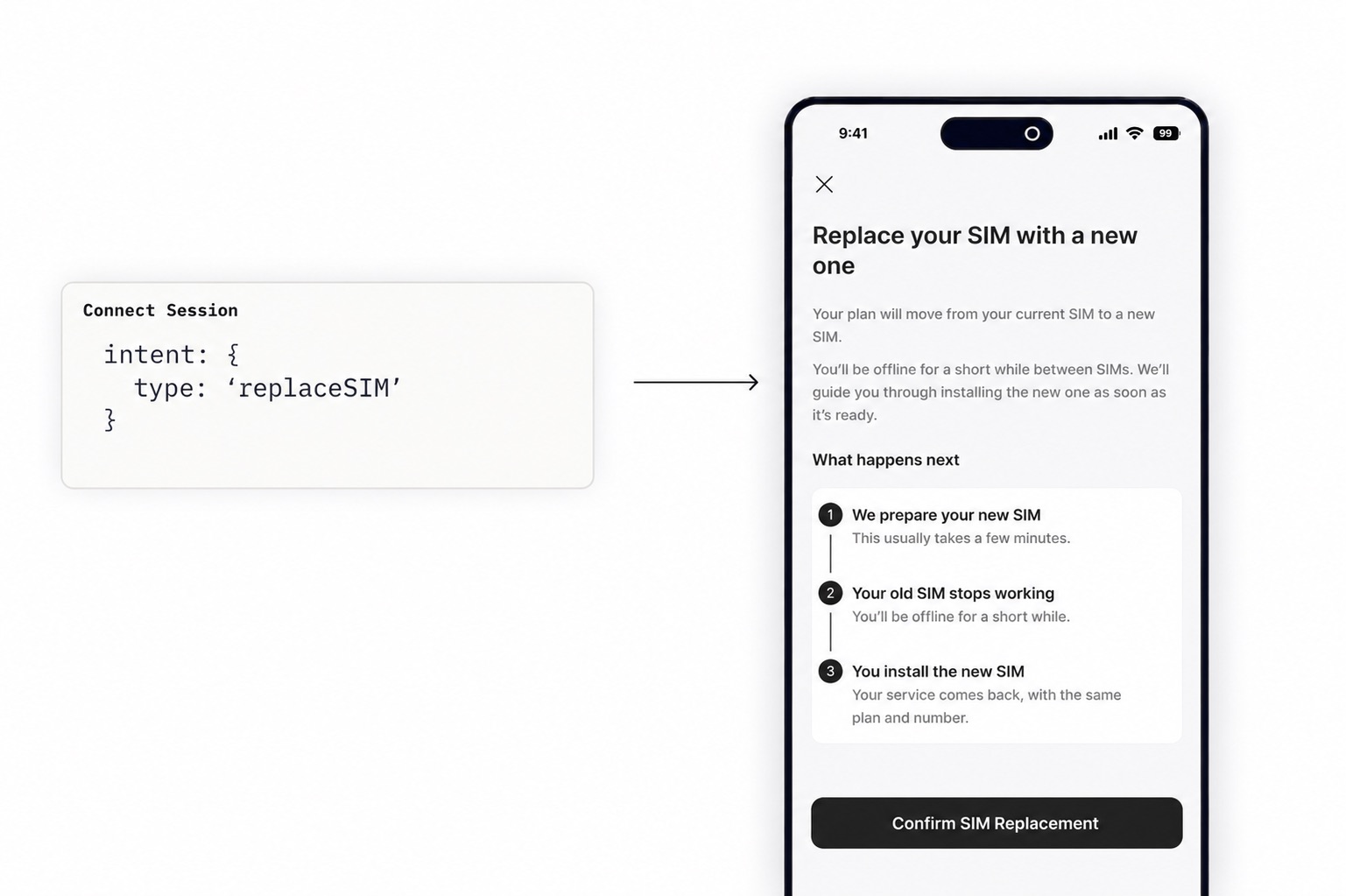
The request expects a replaceSim object that defines the subscription whose SIM should be replaced.
Creating a Connect Session with replaceSim intent
$ curl --request "POST" \
--url "https://api.gigs.com/projects/${GIGS_PROJECT}/connectSessions" \
--header "Content-Type: application/json" \
--header "Authorization: Bearer ${GIGS_TOKEN}" \
--data '{
  "callbackUrl": "https://example.com",
  "intent": {
    "type": "replaceSim",
    "replaceSim": {
      "subscription": "sub_0U32VAxJ0Z7P8Y40mBAnOP9LPhEr"
    }
  },
  "user": "usr_0U2ViuFW0Z7P8Y2S1L76mfADMT6m"
}'
Intent Behavior
- Confirm page: The entry point of the session. Users are shown their current SIM and an explanation of what replacing it means. If the subscription's plan supports both eSIM and pSIM, the user also chooses which type of SIM they want the replacement to be.
- In-progress page: After the user confirms, Connect creates a subscription change with the requested SIM type. A loading state is shown until the change is applied or fails.
- Success: Connect hands the user off to the instructions for setting up the new SIM, which differ by SIM type.
- eSIM: the
viewEsimInstallationsession by default. This can be overridden to redirect to a screen in your own application instead. - pSIM: the user is told to insert the new physical SIM into their device.
- eSIM: the
- Failure: Connect shows an error page with the option to try again or to contact customer support.
The replacement is not tied to the lifetime of the session. If the user closes the session while a replacement is in progress, the replacement still completes — but the user will never see the setup instructions. See Notifying Users of a New SIM.
Notifying Users of a New SIM
The in-progress page only reaches a user who is still looking at it. Users who background the app, lose connectivity, or close the tab will miss the hand-off to the setup instructions. We recommend notifying the user out of band whenever a new SIM is issued, in addition to the session flow.
How much this matters depends on the line. Replacements on travel eSIMs are usually applied within seconds, so most users never leave the in-progress page. On local lines the change can take longer, sometimes up to 10 minutes.
There are two ways to notify the user of a new SIM, and they can be combined.
Using Connect Emails
If your project uses Connect's transactional emails, this is already handled. Gigs emails the user when the new SIM is issued, including a link to the setup instructions for it. No integration work is required.
Using Webhooks
If your project does not use Connect emails, or you would rather reach users through your own channels, trigger your own push notification or email from a webhook.
- Subscribe to the subscription change events on a webhook endpoint.
com.gigs.subscriptionChange.applied: the new SIM has been issued. This is what triggers your notification.com.gigs.subscriptionChange.failed: the replacement did not go through, andfailureCodetells you why. Worth handling, since a user who was shown an in-progress state and then hears nothing is likely to contact support.
- Filter for SIM replacements. Subscription changes also cover plan changes and phone number changes. A SIM replacement is any change where
requestedChange.simis notnull. It isautowhen a new eSIM is allocated automatically, and the ID of a specific SIM otherwise. - Resolve
data.subscriptionto the user in your own system. - Send the notification for the right SIM type, which you can read from
data.sim.type.- eSIM: deep link the user to the installation instructions in your own application. If you do not have your own screen for this, create a
viewEsimInstallationConnect Session and link to itsurlinstead. - pSIM: prompt the user to insert the physical SIM they received.
- eSIM: deep link the user to the installation instructions in your own application. If you do not have your own screen for this, create a
A subscriptionChange.applied event for a SIM replacement
{
  "object": "event",
  "id": "evt_0SNlurA049MEWV5gNTcQ5A07h3Ol",
  "actor": {
    "type": "system"
  },
  "data": {
    "object": "subscriptionChange",
    "id": "sch_0SNlurA049MEWV3bE0SMtbIEJApp",
    "appliedAt": "2026-08-11T14:12:42Z",
    "completedAt": "2026-08-11T14:12:42Z",
    "createdAt": "2026-08-11T14:02:38Z",
    "failureCode": null,
    "plan": null,
    "requestedChange": {
      "phoneNumber": null,
      "plan": null,
      "sim": "auto",
      "when": "now"
    },
    "scheduledAt": null,
    "sim": {
      "object": "sim",
      "id": "sim_0SNlurA049MEWV1BAAmWZULA4lf6",
      "metadata": {},
      "createdAt": "2026-08-11T14:02:38Z",
      "iccid": "89883070000007537119",
      "provider": "p12",
      "status": "active",
      "type": "eSIM"
    },
    "status": "applied",
    "subscription": "sub_0U32VAxJ0Z7P8Y40mBAnOP9LPhEr"
  },
  "datacontenttype": "application/json",
  "project": "gigs",
  "source": "https://api.gigs.com",
  "specversion": "1.0",
  "time": "2026-08-11T14:12:42Z",
  "type": "com.gigs.subscriptionChange.applied",
  "version": "2026-01-29.130"
}
Note: Do not include activation credentials such as the activation code, QR payload, or ICCID in the body of a push notification or email. Link to a Connect Session instead. Session URLs are short-lived and scoped to a single user.
Related Events
| Event | When it fires |
|---|---|
com.gigs.subscriptionChange.created | The user confirmed the replacement and the change was created. |
com.gigs.subscriptionChange.pending | The change is waiting to be applied. |
com.gigs.subscriptionChange.applied | The new SIM has been issued. Trigger your notification here. |
com.gigs.subscriptionChange.failed | The replacement failed. Check failureCode. |
Aborting the Replacement Flow
Users have the option to abort the flow from the confirm page if they choose not to proceed. When this happens, the callbackUrl provided during the Connect Session creation will be invoked.
If the user aborts after a replacement has already been created, the replacement is not cancelled and will still be applied.
Supported SIM Types
The replaceSim intent supports both eSIM and pSIM subscriptions, and the replacement does not have to be the same type as the SIM it replaces. A user on an eSIM can switch to a pSIM, and a user on a pSIM can switch to an eSIM.
Which types are on offer comes from the subscription's plan. If the plan supports only one SIM type, the replacement is always of that type and the user is not asked. If it supports both, the user picks on the confirm page, and their choice determines where they land afterwards: eSIM installation instructions, or a prompt to insert the new physical SIM.
Where to go from here
- Read the Connect Sessions API Documentation
- Read about the viewEsimInstallation intent
- Read about Events and Webhooks